> ## Documentation Index
> Fetch the complete documentation index at: https://docs-staging-update-unified-phone-experience-doc.mintlify.site/llms.txt
> Use this file to discover all available pages before exploring further.

> Learn how to configure an update policy form using Forms for Actions for users to review and accept new terms of service or consent updates.

# Use Cases: Configure an update policy form using Forms

<Card title="Before you start">
  1. Create a [Machine-to-Machine Application](/docs/get-started/auth0-overview/create-applications/machine-to-machine-apps) with the following scopes enabled:

  * `read:users`
  * `update:users`
  * `create:users`
  * `read:users_app_metadata`
  * `update:users_app_metadata`
  * `create:users_app_metadata`

  2. Add a [Vault connection](/docs/customize/forms/vault) using the M2M application credentials.
</Card>

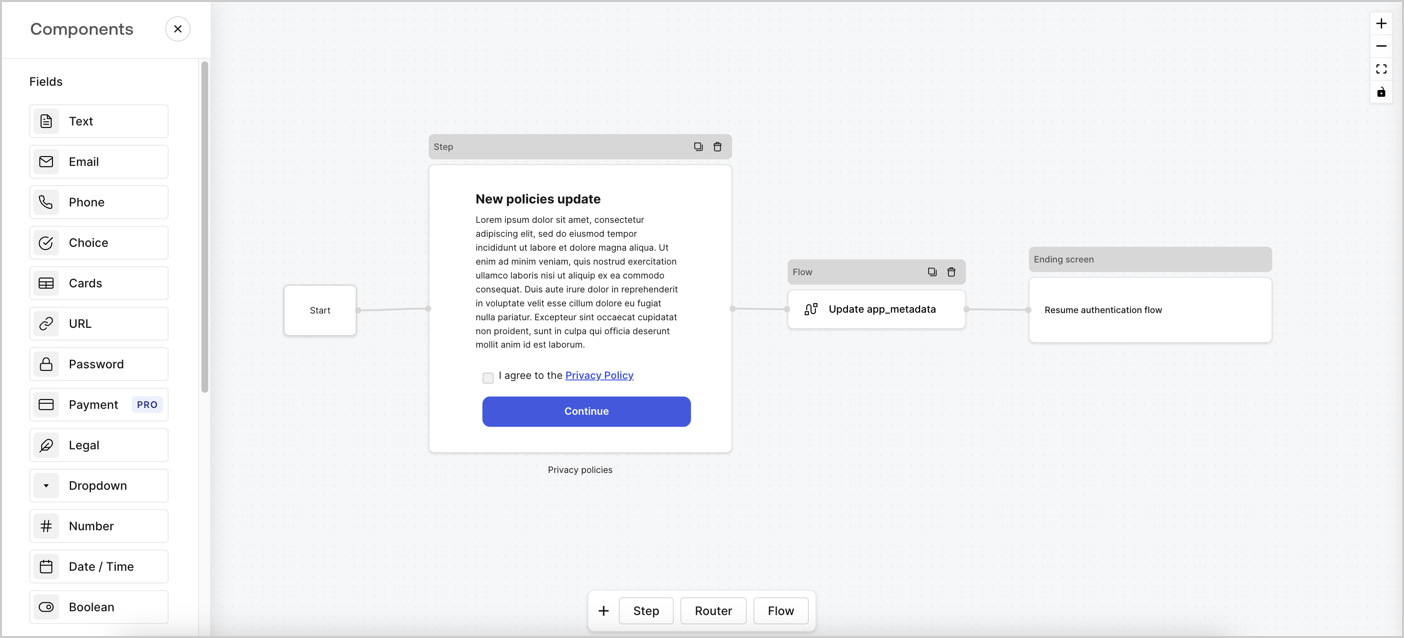
Forms for Actions allows you to create custom privacy policies flows and store the consent under the `app_metadata` object.
<Frame>
  <img src="https://mintcdn.com/docs-staging-update-unified-phone-experience-doc/wbjV-fPIZetQUnu1/docs/images/cdy7uua7fh8z/6i68dMvHDTijfRmSgN1x8Q/ad900e7d4c0fb34645921435472b8684/privavy-policy-form.png?fit=max&auto=format&n=wbjV-fPIZetQUnu1&q=85&s=29159486da42dfcfc2ec9295436e21a8" alt="Dashboard > Actions > Forms > Privacy policy use case" data-og-width="1404" width="1404" data-og-height="638" height="638" data-path="docs/images/cdy7uua7fh8z/6i68dMvHDTijfRmSgN1x8Q/ad900e7d4c0fb34645921435472b8684/privavy-policy-form.png" data-optimize="true" data-opv="3" srcset="https://mintcdn.com/docs-staging-update-unified-phone-experience-doc/wbjV-fPIZetQUnu1/docs/images/cdy7uua7fh8z/6i68dMvHDTijfRmSgN1x8Q/ad900e7d4c0fb34645921435472b8684/privavy-policy-form.png?w=280&fit=max&auto=format&n=wbjV-fPIZetQUnu1&q=85&s=af65e4e40ac8e1431cc979c54482a076 280w, https://mintcdn.com/docs-staging-update-unified-phone-experience-doc/wbjV-fPIZetQUnu1/docs/images/cdy7uua7fh8z/6i68dMvHDTijfRmSgN1x8Q/ad900e7d4c0fb34645921435472b8684/privavy-policy-form.png?w=560&fit=max&auto=format&n=wbjV-fPIZetQUnu1&q=85&s=f10751a80ceb01dd8986ec70acbb5a47 560w, https://mintcdn.com/docs-staging-update-unified-phone-experience-doc/wbjV-fPIZetQUnu1/docs/images/cdy7uua7fh8z/6i68dMvHDTijfRmSgN1x8Q/ad900e7d4c0fb34645921435472b8684/privavy-policy-form.png?w=840&fit=max&auto=format&n=wbjV-fPIZetQUnu1&q=85&s=7d24c55226cfb141502e4864ada3cd46 840w, https://mintcdn.com/docs-staging-update-unified-phone-experience-doc/wbjV-fPIZetQUnu1/docs/images/cdy7uua7fh8z/6i68dMvHDTijfRmSgN1x8Q/ad900e7d4c0fb34645921435472b8684/privavy-policy-form.png?w=1100&fit=max&auto=format&n=wbjV-fPIZetQUnu1&q=85&s=d7212318da5506b9a64fc66f9ac99ffe 1100w, https://mintcdn.com/docs-staging-update-unified-phone-experience-doc/wbjV-fPIZetQUnu1/docs/images/cdy7uua7fh8z/6i68dMvHDTijfRmSgN1x8Q/ad900e7d4c0fb34645921435472b8684/privavy-policy-form.png?w=1650&fit=max&auto=format&n=wbjV-fPIZetQUnu1&q=85&s=60275eb5cd48d89b428a829b436dc3e1 1650w, https://mintcdn.com/docs-staging-update-unified-phone-experience-doc/wbjV-fPIZetQUnu1/docs/images/cdy7uua7fh8z/6i68dMvHDTijfRmSgN1x8Q/ad900e7d4c0fb34645921435472b8684/privavy-policy-form.png?w=2500&fit=max&auto=format&n=wbjV-fPIZetQUnu1&q=85&s=f7dc6a8ad687db837e12070af9407589 2500w" />
</Frame>

The sections below outline how you can create an Update Policy form using nodes and flows, along with steps for adding your form to a [Post Login](/docs/customize/actions/explore-triggers/signup-and-login-triggers/login-trigger) Action.

## Create a form from scratch

Follow these steps to create a form to gather information:

1. Open the Form editor by selecting **Auth0 Dashboard > Actions > Forms.**
2. Select **Create Form** > **Start from scratch**.

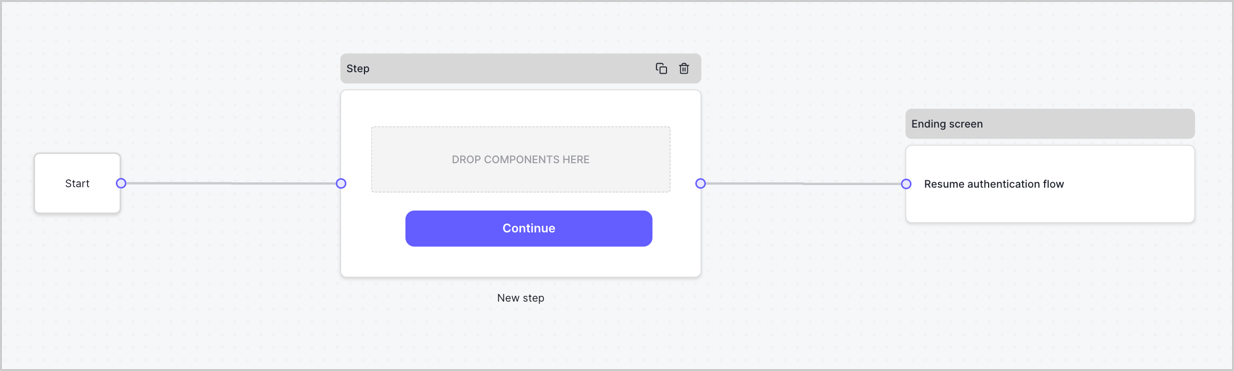
By default, a new form contains a Start node, a Step node, and an Ending screen node.
<Frame>
  <img src="https://mintcdn.com/docs-staging-update-unified-phone-experience-doc/8JK34Q3bj-SGoE9I/docs/images/cdy7uua7fh8z/2TZ9jSjgEcARFpULI6hz4R/a4319a1bd482f2ee5cc23100fdb2f42c/New-form-Forms-for-action-use-case.png?fit=max&auto=format&n=8JK34Q3bj-SGoE9I&q=85&s=5d4c376517ea82529eed8cc2a996f84e" alt="Dashboard > Forms > Use Cases > Form" data-og-width="1234" width="1234" data-og-height="371" height="371" data-path="docs/images/cdy7uua7fh8z/2TZ9jSjgEcARFpULI6hz4R/a4319a1bd482f2ee5cc23100fdb2f42c/New-form-Forms-for-action-use-case.png" data-optimize="true" data-opv="3" srcset="https://mintcdn.com/docs-staging-update-unified-phone-experience-doc/8JK34Q3bj-SGoE9I/docs/images/cdy7uua7fh8z/2TZ9jSjgEcARFpULI6hz4R/a4319a1bd482f2ee5cc23100fdb2f42c/New-form-Forms-for-action-use-case.png?w=280&fit=max&auto=format&n=8JK34Q3bj-SGoE9I&q=85&s=c1266603a0ee6ccca7475aeceea41744 280w, https://mintcdn.com/docs-staging-update-unified-phone-experience-doc/8JK34Q3bj-SGoE9I/docs/images/cdy7uua7fh8z/2TZ9jSjgEcARFpULI6hz4R/a4319a1bd482f2ee5cc23100fdb2f42c/New-form-Forms-for-action-use-case.png?w=560&fit=max&auto=format&n=8JK34Q3bj-SGoE9I&q=85&s=8fa41fe0234d195e8ae477e824295c08 560w, https://mintcdn.com/docs-staging-update-unified-phone-experience-doc/8JK34Q3bj-SGoE9I/docs/images/cdy7uua7fh8z/2TZ9jSjgEcARFpULI6hz4R/a4319a1bd482f2ee5cc23100fdb2f42c/New-form-Forms-for-action-use-case.png?w=840&fit=max&auto=format&n=8JK34Q3bj-SGoE9I&q=85&s=99e068e27621ba29b32fc5a3cb068fac 840w, https://mintcdn.com/docs-staging-update-unified-phone-experience-doc/8JK34Q3bj-SGoE9I/docs/images/cdy7uua7fh8z/2TZ9jSjgEcARFpULI6hz4R/a4319a1bd482f2ee5cc23100fdb2f42c/New-form-Forms-for-action-use-case.png?w=1100&fit=max&auto=format&n=8JK34Q3bj-SGoE9I&q=85&s=804cd525ed6cc05ebde3d6b8d038667a 1100w, https://mintcdn.com/docs-staging-update-unified-phone-experience-doc/8JK34Q3bj-SGoE9I/docs/images/cdy7uua7fh8z/2TZ9jSjgEcARFpULI6hz4R/a4319a1bd482f2ee5cc23100fdb2f42c/New-form-Forms-for-action-use-case.png?w=1650&fit=max&auto=format&n=8JK34Q3bj-SGoE9I&q=85&s=f3c9c936874d50b23a40478773ae4686 1650w, https://mintcdn.com/docs-staging-update-unified-phone-experience-doc/8JK34Q3bj-SGoE9I/docs/images/cdy7uua7fh8z/2TZ9jSjgEcARFpULI6hz4R/a4319a1bd482f2ee5cc23100fdb2f42c/New-form-Forms-for-action-use-case.png?w=2500&fit=max&auto=format&n=8JK34Q3bj-SGoE9I&q=85&s=0c4bc6692ccdf9d7d3589e0d999ec0c7 2500w" />
</Frame>

### Configure the Step node

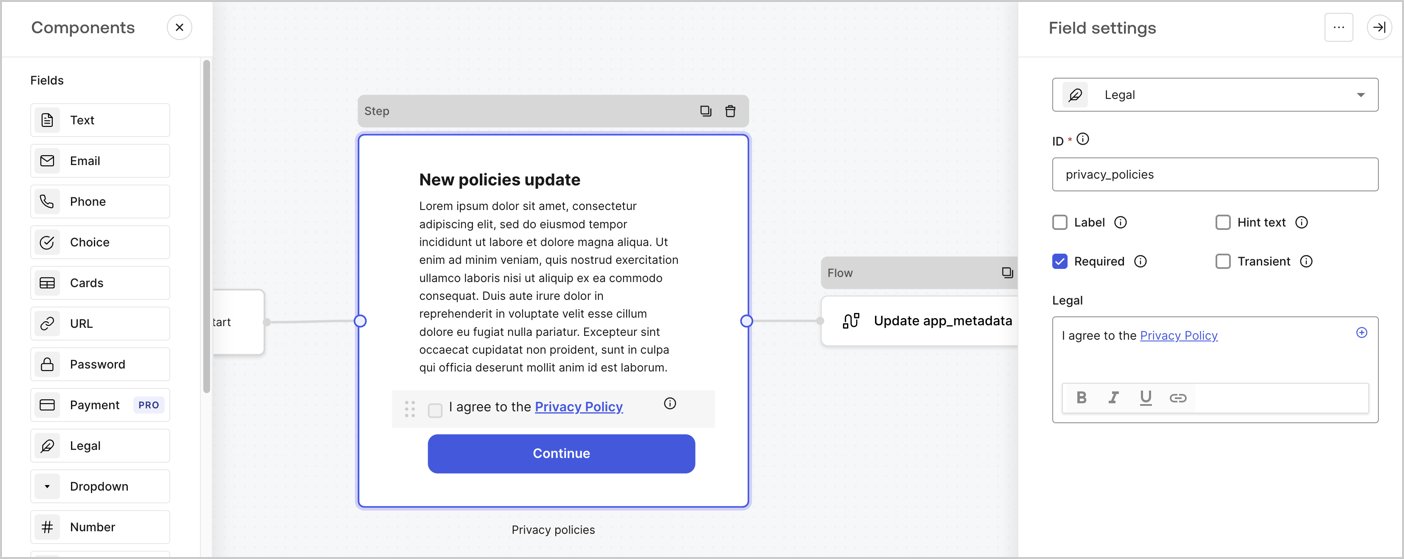
The Step node is the graphical interface visible to users. Add [Fields](/docs/customize/forms/nodes-and-components) to the Step node to collect the new agreement acceptance value by following these steps:

1. Drag a **Rich text** field from the **Components menu** into the **Step** node.

   * **Rich text**: Enter a description of your privacy policies updates.
   * Select **Save**.
2. Drag a **Legal** field into the **Step** node.

   * **ID**: Enter `privacy_policies`.
   * **Required**: Enable the checkbox.
   * **Legal**: Enter `I agree to the Privacy Policy`.
   * Select **Save**.
3. Select **Publish** to save.
<Frame>
  <img src="https://mintcdn.com/docs-staging-update-unified-phone-experience-doc/3UTFE0u5rbrHP4bh/docs/images/cdy7uua7fh8z/59zFFjQjAnjogkc2QGIqqJ/0ad66b1b636544122aa4e65968b76c2c/privacy-policy-step-node.png?fit=max&auto=format&n=3UTFE0u5rbrHP4bh&q=85&s=e5594c67f77aee8cdbe16b86eb77cfc0" alt="Dashboard > Actions > Forms > Use case privacy policy step node" data-og-width="1404" width="1404" data-og-height="559" height="559" data-path="docs/images/cdy7uua7fh8z/59zFFjQjAnjogkc2QGIqqJ/0ad66b1b636544122aa4e65968b76c2c/privacy-policy-step-node.png" data-optimize="true" data-opv="3" srcset="https://mintcdn.com/docs-staging-update-unified-phone-experience-doc/3UTFE0u5rbrHP4bh/docs/images/cdy7uua7fh8z/59zFFjQjAnjogkc2QGIqqJ/0ad66b1b636544122aa4e65968b76c2c/privacy-policy-step-node.png?w=280&fit=max&auto=format&n=3UTFE0u5rbrHP4bh&q=85&s=0df9dfda70981a88c9480e8c3db7581b 280w, https://mintcdn.com/docs-staging-update-unified-phone-experience-doc/3UTFE0u5rbrHP4bh/docs/images/cdy7uua7fh8z/59zFFjQjAnjogkc2QGIqqJ/0ad66b1b636544122aa4e65968b76c2c/privacy-policy-step-node.png?w=560&fit=max&auto=format&n=3UTFE0u5rbrHP4bh&q=85&s=570ab712d840cc8c4a318688c258e257 560w, https://mintcdn.com/docs-staging-update-unified-phone-experience-doc/3UTFE0u5rbrHP4bh/docs/images/cdy7uua7fh8z/59zFFjQjAnjogkc2QGIqqJ/0ad66b1b636544122aa4e65968b76c2c/privacy-policy-step-node.png?w=840&fit=max&auto=format&n=3UTFE0u5rbrHP4bh&q=85&s=7541d4ec64e27c0025c9d75fa84b4017 840w, https://mintcdn.com/docs-staging-update-unified-phone-experience-doc/3UTFE0u5rbrHP4bh/docs/images/cdy7uua7fh8z/59zFFjQjAnjogkc2QGIqqJ/0ad66b1b636544122aa4e65968b76c2c/privacy-policy-step-node.png?w=1100&fit=max&auto=format&n=3UTFE0u5rbrHP4bh&q=85&s=311519d7df8a3b6d1b5c265bdfafb198 1100w, https://mintcdn.com/docs-staging-update-unified-phone-experience-doc/3UTFE0u5rbrHP4bh/docs/images/cdy7uua7fh8z/59zFFjQjAnjogkc2QGIqqJ/0ad66b1b636544122aa4e65968b76c2c/privacy-policy-step-node.png?w=1650&fit=max&auto=format&n=3UTFE0u5rbrHP4bh&q=85&s=21a66a5cec82462a6946a2f8eaa9fa72 1650w, https://mintcdn.com/docs-staging-update-unified-phone-experience-doc/3UTFE0u5rbrHP4bh/docs/images/cdy7uua7fh8z/59zFFjQjAnjogkc2QGIqqJ/0ad66b1b636544122aa4e65968b76c2c/privacy-policy-step-node.png?w=2500&fit=max&auto=format&n=3UTFE0u5rbrHP4bh&q=85&s=c7d7fc9c571e8dca44a576b791fd4dc9 2500w" />
</Frame>

### Configure the Flow node

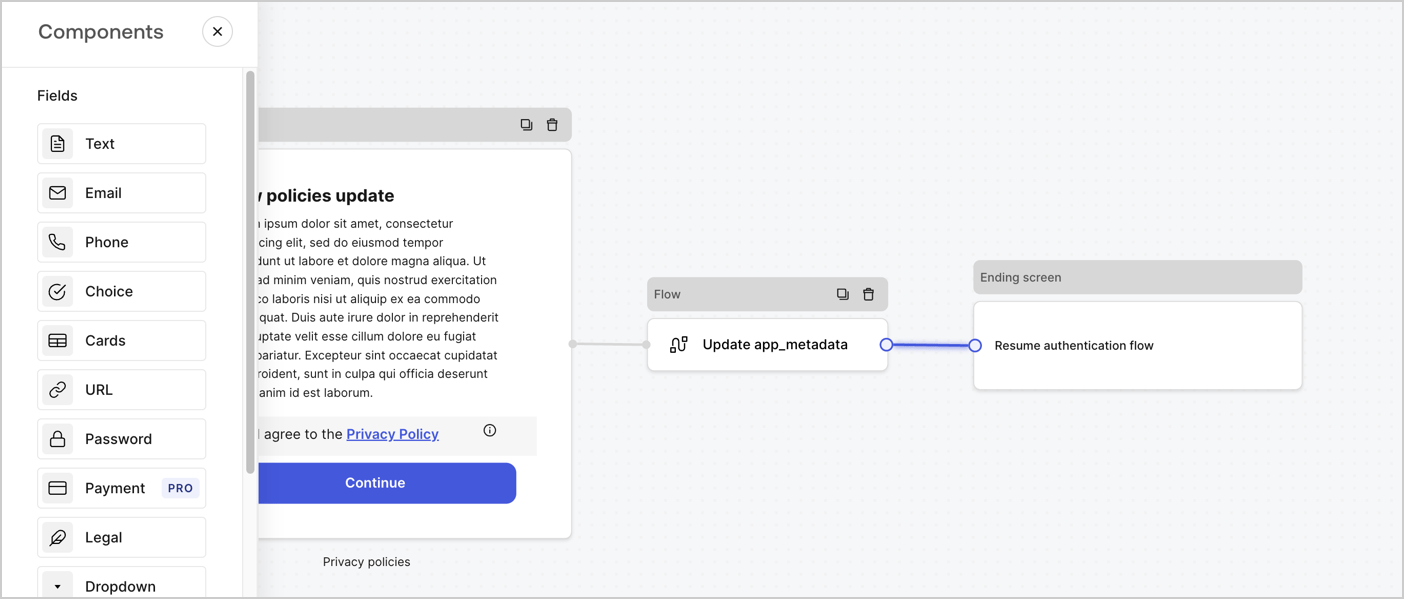
Add a **Flow** node after the **Step** node to update the `app_metadata` and resume the authentication flow by following these steps:

1. Select **Flow** from the bottom of the Form editor.
2. Remove the existing link between the **Step** and **Ending Screen** nodes.
3. Select the new **Flow** > **Click to add a flow** > **Create a new flow.**

   * Enter `Update app_metadata` in the **Name** field.
   * Select **Create**.
   * Select **Save**.
4. Link the **Flow** node to the **Step** and **Ending Screen** nodes as pictured below.
5. Select **Publish** to save.
<Frame>
  <img src="https://mintcdn.com/docs-staging-update-unified-phone-experience-doc/wbjV-fPIZetQUnu1/docs/images/cdy7uua7fh8z/6YIkzm7SrpM9LW76AXuRzh/353c518fe82bbaa440836da1d83596d6/link-policies.png?fit=max&auto=format&n=wbjV-fPIZetQUnu1&q=85&s=e5f9b3718e3efd8e11503b30d89fd9a7" alt="Dashboard > Actions > Forms > Form" data-og-width="1404" width="1404" data-og-height="599" height="599" data-path="docs/images/cdy7uua7fh8z/6YIkzm7SrpM9LW76AXuRzh/353c518fe82bbaa440836da1d83596d6/link-policies.png" data-optimize="true" data-opv="3" srcset="https://mintcdn.com/docs-staging-update-unified-phone-experience-doc/wbjV-fPIZetQUnu1/docs/images/cdy7uua7fh8z/6YIkzm7SrpM9LW76AXuRzh/353c518fe82bbaa440836da1d83596d6/link-policies.png?w=280&fit=max&auto=format&n=wbjV-fPIZetQUnu1&q=85&s=d98e50c83027b31c94013b4f363f04ef 280w, https://mintcdn.com/docs-staging-update-unified-phone-experience-doc/wbjV-fPIZetQUnu1/docs/images/cdy7uua7fh8z/6YIkzm7SrpM9LW76AXuRzh/353c518fe82bbaa440836da1d83596d6/link-policies.png?w=560&fit=max&auto=format&n=wbjV-fPIZetQUnu1&q=85&s=d151b66f9ea128b7215dfcee3253ef0d 560w, https://mintcdn.com/docs-staging-update-unified-phone-experience-doc/wbjV-fPIZetQUnu1/docs/images/cdy7uua7fh8z/6YIkzm7SrpM9LW76AXuRzh/353c518fe82bbaa440836da1d83596d6/link-policies.png?w=840&fit=max&auto=format&n=wbjV-fPIZetQUnu1&q=85&s=ca650714c91c93f7022bddff24778f98 840w, https://mintcdn.com/docs-staging-update-unified-phone-experience-doc/wbjV-fPIZetQUnu1/docs/images/cdy7uua7fh8z/6YIkzm7SrpM9LW76AXuRzh/353c518fe82bbaa440836da1d83596d6/link-policies.png?w=1100&fit=max&auto=format&n=wbjV-fPIZetQUnu1&q=85&s=64d152d472f1c3045e312de9bffc9402 1100w, https://mintcdn.com/docs-staging-update-unified-phone-experience-doc/wbjV-fPIZetQUnu1/docs/images/cdy7uua7fh8z/6YIkzm7SrpM9LW76AXuRzh/353c518fe82bbaa440836da1d83596d6/link-policies.png?w=1650&fit=max&auto=format&n=wbjV-fPIZetQUnu1&q=85&s=f9e9875a69f691fa4e5c0b3c9a31819e 1650w, https://mintcdn.com/docs-staging-update-unified-phone-experience-doc/wbjV-fPIZetQUnu1/docs/images/cdy7uua7fh8z/6YIkzm7SrpM9LW76AXuRzh/353c518fe82bbaa440836da1d83596d6/link-policies.png?w=2500&fit=max&auto=format&n=wbjV-fPIZetQUnu1&q=85&s=8be896cdbd0843ed72b1df745e74b442 2500w" />
</Frame>

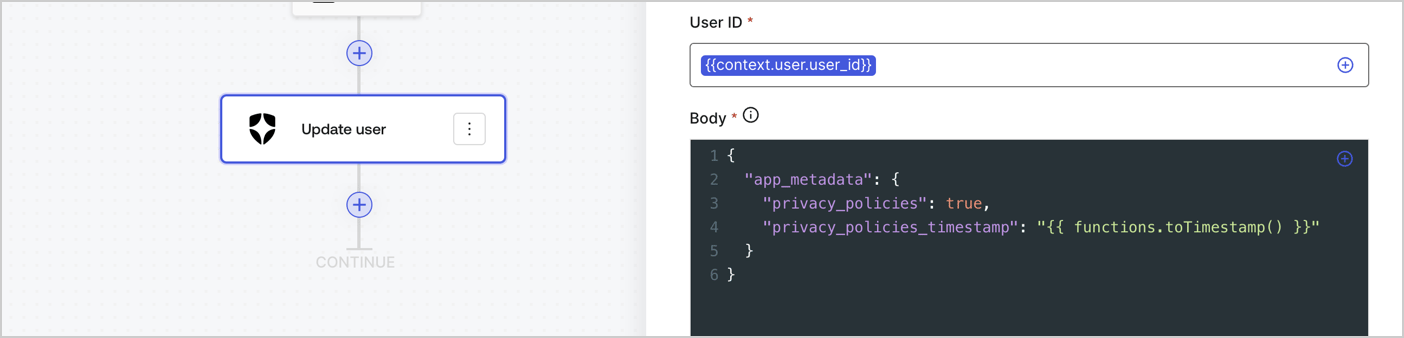
Add an Auth0 Update user action to the flow by following these steps:

1. Select the **Flow** **Update app\_metadata** > **Edit flow** to open the Flow editor in a new tab.
2. Below the StartAction, select the **+** icon to add an **Update user** action. Complete the fields below, then select **Save** to continue.

   * **Connection**: Select from the dropdown the Vault connection to your M2M application.

   * **User ID**: Enter `{{context.user.user_id}}`.

   * **Body**: Copy and paste the following code to update the app\_metadata with the privacy\_policies and privacy\_policies\_timestamp properties.

     ```text lines theme={null}
     {
       "app_metadata": {
         "privacy_policies": true,
         "privacy_policies_timestamp": "{{ functions.toTimestamp() }}"
       }
     }
     ```

   * Select **Save**.
3. Select **Publish** to save.
<Frame>
  <img src="https://mintcdn.com/docs-staging-update-unified-phone-experience-doc/ZCQ_taxaVHBKlBGW/docs/images/cdy7uua7fh8z/CvMNIwWrOUwaFW4X3G28p/1fb70ae57a20749d9ffaaba8dc0b7e26/update-user-privacy.png?fit=max&auto=format&n=ZCQ_taxaVHBKlBGW&q=85&s=0b7379516cfb9c606ef5e7bd5687a0ef" alt="Dashboard > Actions > Forms > User case privacy policy code" data-og-width="1404" width="1404" data-og-height="338" height="338" data-path="docs/images/cdy7uua7fh8z/CvMNIwWrOUwaFW4X3G28p/1fb70ae57a20749d9ffaaba8dc0b7e26/update-user-privacy.png" data-optimize="true" data-opv="3" srcset="https://mintcdn.com/docs-staging-update-unified-phone-experience-doc/ZCQ_taxaVHBKlBGW/docs/images/cdy7uua7fh8z/CvMNIwWrOUwaFW4X3G28p/1fb70ae57a20749d9ffaaba8dc0b7e26/update-user-privacy.png?w=280&fit=max&auto=format&n=ZCQ_taxaVHBKlBGW&q=85&s=be67bf2ad3066715ea068bbdd558954a 280w, https://mintcdn.com/docs-staging-update-unified-phone-experience-doc/ZCQ_taxaVHBKlBGW/docs/images/cdy7uua7fh8z/CvMNIwWrOUwaFW4X3G28p/1fb70ae57a20749d9ffaaba8dc0b7e26/update-user-privacy.png?w=560&fit=max&auto=format&n=ZCQ_taxaVHBKlBGW&q=85&s=586c93c6940d31414871d4dc93c828e0 560w, https://mintcdn.com/docs-staging-update-unified-phone-experience-doc/ZCQ_taxaVHBKlBGW/docs/images/cdy7uua7fh8z/CvMNIwWrOUwaFW4X3G28p/1fb70ae57a20749d9ffaaba8dc0b7e26/update-user-privacy.png?w=840&fit=max&auto=format&n=ZCQ_taxaVHBKlBGW&q=85&s=2d12086bedb83b177539040e1c31b6ae 840w, https://mintcdn.com/docs-staging-update-unified-phone-experience-doc/ZCQ_taxaVHBKlBGW/docs/images/cdy7uua7fh8z/CvMNIwWrOUwaFW4X3G28p/1fb70ae57a20749d9ffaaba8dc0b7e26/update-user-privacy.png?w=1100&fit=max&auto=format&n=ZCQ_taxaVHBKlBGW&q=85&s=f71e409211b65345a5da767d9ce166fe 1100w, https://mintcdn.com/docs-staging-update-unified-phone-experience-doc/ZCQ_taxaVHBKlBGW/docs/images/cdy7uua7fh8z/CvMNIwWrOUwaFW4X3G28p/1fb70ae57a20749d9ffaaba8dc0b7e26/update-user-privacy.png?w=1650&fit=max&auto=format&n=ZCQ_taxaVHBKlBGW&q=85&s=5d5e759f2ffc48d858fda712cadd168b 1650w, https://mintcdn.com/docs-staging-update-unified-phone-experience-doc/ZCQ_taxaVHBKlBGW/docs/images/cdy7uua7fh8z/CvMNIwWrOUwaFW4X3G28p/1fb70ae57a20749d9ffaaba8dc0b7e26/update-user-privacy.png?w=2500&fit=max&auto=format&n=ZCQ_taxaVHBKlBGW&q=85&s=d543cba0d26454f8d666390f2a495e18 2500w" />
</Frame>

<Callout icon="file-lines" color="#0EA5E9" iconType="regular">
  The flow **Update app\_metadata** adds a `privacy_policies true` value to the app`_metadata` object and also generates a timestamp with a [helper function.](/docs/customize/forms/variables)
</Callout>

## Retrieve the form render code

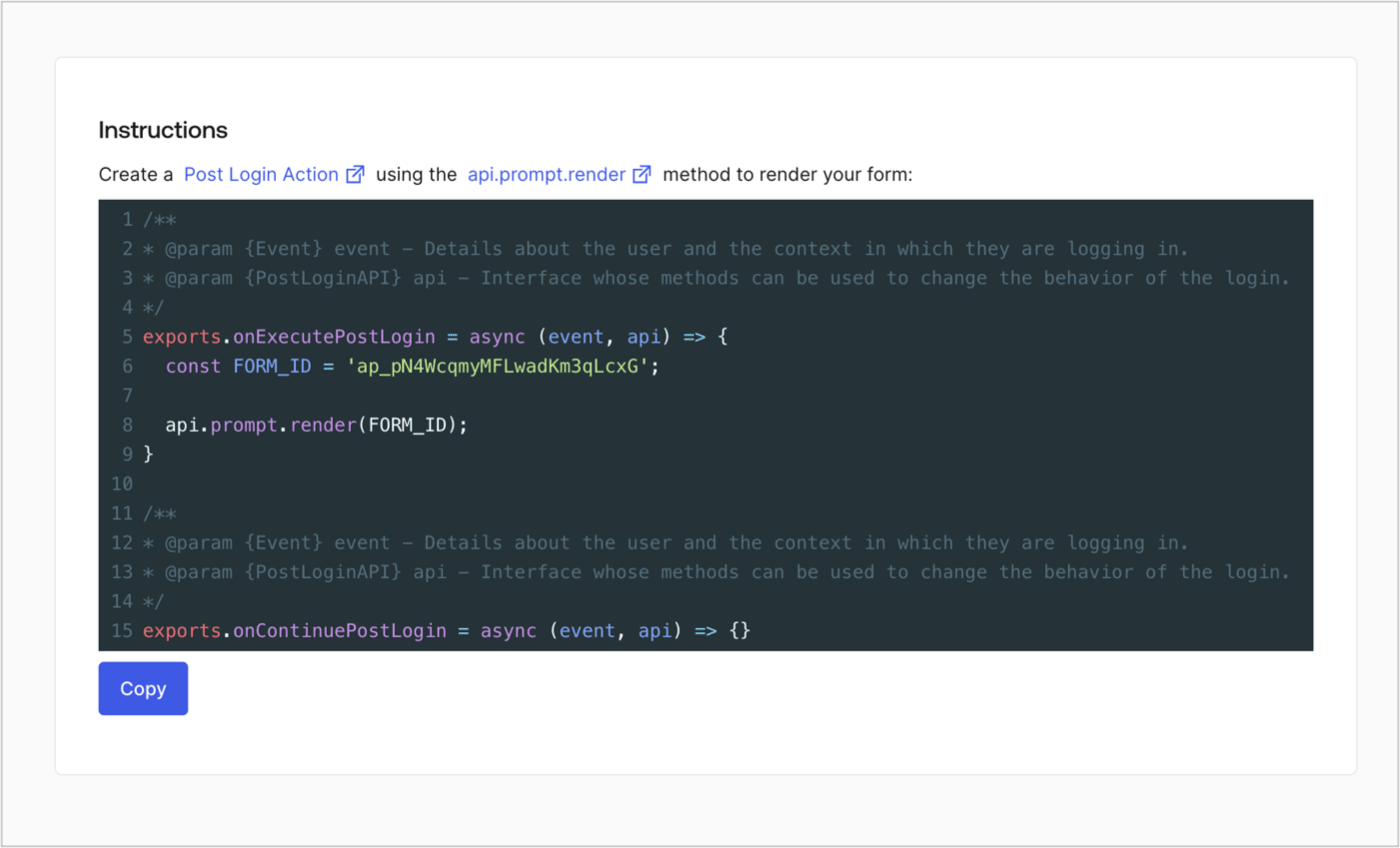
Retrieve your form render code to visually render the form with a custom Post Login Action by following these steps:

* From the Form editor, select **`<> Render`**.
* Select **Copy**.
<Frame>
  <img src="https://mintcdn.com/docs-staging-update-unified-phone-experience-doc/LNszlcgSDYNoSdsO/docs/images/cdy7uua7fh8z/2EIUzc539sq9lwoTKbjoJv/496a864c0fc44a782c9cadca119dbfb0/embed.png?fit=max&auto=format&n=LNszlcgSDYNoSdsO&q=85&s=a40eebeedbb1c484ce0d16e781c1ccc0" alt="Dashboard > Actions > Forms > Form > Embed" data-og-width="1400" width="1400" data-og-height="848" height="848" data-path="docs/images/cdy7uua7fh8z/2EIUzc539sq9lwoTKbjoJv/496a864c0fc44a782c9cadca119dbfb0/embed.png" data-optimize="true" data-opv="3" srcset="https://mintcdn.com/docs-staging-update-unified-phone-experience-doc/LNszlcgSDYNoSdsO/docs/images/cdy7uua7fh8z/2EIUzc539sq9lwoTKbjoJv/496a864c0fc44a782c9cadca119dbfb0/embed.png?w=280&fit=max&auto=format&n=LNszlcgSDYNoSdsO&q=85&s=0304e37ff2d87a0c5182eee5575e8056 280w, https://mintcdn.com/docs-staging-update-unified-phone-experience-doc/LNszlcgSDYNoSdsO/docs/images/cdy7uua7fh8z/2EIUzc539sq9lwoTKbjoJv/496a864c0fc44a782c9cadca119dbfb0/embed.png?w=560&fit=max&auto=format&n=LNszlcgSDYNoSdsO&q=85&s=58acdef955cdae004b9fb754b6d0a7b4 560w, https://mintcdn.com/docs-staging-update-unified-phone-experience-doc/LNszlcgSDYNoSdsO/docs/images/cdy7uua7fh8z/2EIUzc539sq9lwoTKbjoJv/496a864c0fc44a782c9cadca119dbfb0/embed.png?w=840&fit=max&auto=format&n=LNszlcgSDYNoSdsO&q=85&s=ff9c188b404766bb22f2bf320df1bccd 840w, https://mintcdn.com/docs-staging-update-unified-phone-experience-doc/LNszlcgSDYNoSdsO/docs/images/cdy7uua7fh8z/2EIUzc539sq9lwoTKbjoJv/496a864c0fc44a782c9cadca119dbfb0/embed.png?w=1100&fit=max&auto=format&n=LNszlcgSDYNoSdsO&q=85&s=ef3242db58dfc137a32ec4f0e6d0b3ae 1100w, https://mintcdn.com/docs-staging-update-unified-phone-experience-doc/LNszlcgSDYNoSdsO/docs/images/cdy7uua7fh8z/2EIUzc539sq9lwoTKbjoJv/496a864c0fc44a782c9cadca119dbfb0/embed.png?w=1650&fit=max&auto=format&n=LNszlcgSDYNoSdsO&q=85&s=4fe9e6ae33dc8ed8c4e21b0313e6f214 1650w, https://mintcdn.com/docs-staging-update-unified-phone-experience-doc/LNszlcgSDYNoSdsO/docs/images/cdy7uua7fh8z/2EIUzc539sq9lwoTKbjoJv/496a864c0fc44a782c9cadca119dbfb0/embed.png?w=2500&fit=max&auto=format&n=LNszlcgSDYNoSdsO&q=85&s=d1402c7bf27896b565264ac4b10864ea 2500w" />
</Frame>

## Create a Post Login Action

Create a post-login Action to render your form by following these steps:

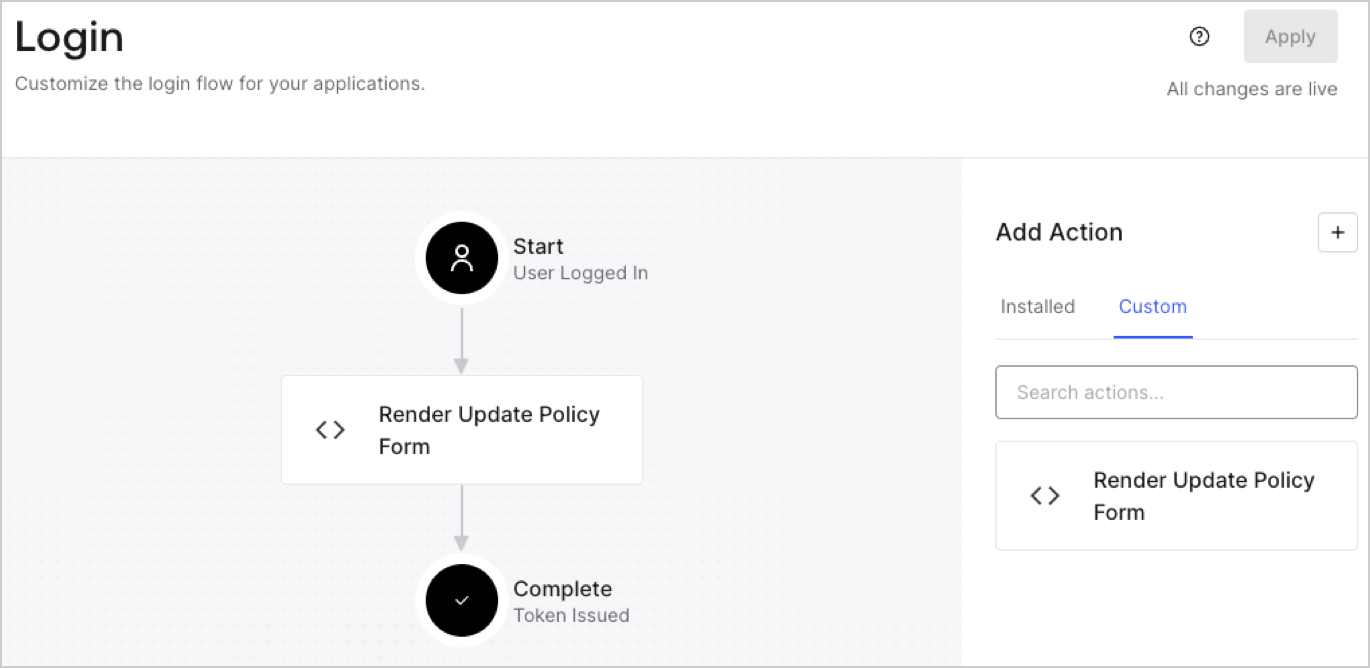
1. Navigate to **Auth0 Dashboard > Actions > Flows > Login.**
2. Select the **+** icon and Select **Build from scratch**:

   * **Name**: Enter `Render Update Policy Form`.
   * **Trigger**: Select `Login / Post Login`.
   * **Runtime**: Select the recommended version.
3. Select **Create**.

To configure the post-login Action:

1. Delete the existing code from the Code editor.
2. Paste the form render code into the Code editor.
3. Edit the code to define the conditional logic that will render the form.

   ```javascript lines theme={null}
   /**
   * @param {Event} event - Details about the user and the context in which they are logging in.
   * @param {PostLoginAPI} api - Interface whose methods can be used to change the behavior of the login.
   */
   exports.onExecutePostLogin = async (event, api) => {
     const FORM_ID = 'REPLACE_WITH_YOUR_FORM_ID';

     if (event.user.app_metadata.privacy_policies !== true) {
       api.prompt.render(FORM_ID);
     }
   }

   exports.onContinuePostLogin = async (event, api) => { }
   ```

   <Callout icon="file-lines" color="#0EA5E9" iconType="regular">
     The example code above will render the form when a user is missing the app metadata `privacy_policies` property.
   </Callout>
4. Select **Deploy.**
5. Drag and Drop the **Render Update Policy Form** Action to the **Login** flow.
   <Frame>
     <img src="https://mintcdn.com/docs-staging-update-unified-phone-experience-doc/Ikj2oro_PkBbITZx/docs/images/cdy7uua7fh8z/5TOwDgevZsBqd7yZynUYWU/41ca909dc3007aed4f40ff794a05efa5/postlogin.png?fit=max&auto=format&n=Ikj2oro_PkBbITZx&q=85&s=6b8c1e509bbbf91e06d204ae31fa58b1" alt="Dashboard > Forms > Use Case > Render update policy form login action" data-og-width="1370" width="1370" data-og-height="668" height="668" data-path="docs/images/cdy7uua7fh8z/5TOwDgevZsBqd7yZynUYWU/41ca909dc3007aed4f40ff794a05efa5/postlogin.png" data-optimize="true" data-opv="3" srcset="https://mintcdn.com/docs-staging-update-unified-phone-experience-doc/Ikj2oro_PkBbITZx/docs/images/cdy7uua7fh8z/5TOwDgevZsBqd7yZynUYWU/41ca909dc3007aed4f40ff794a05efa5/postlogin.png?w=280&fit=max&auto=format&n=Ikj2oro_PkBbITZx&q=85&s=6e267dcea30bf824be976b48920c7d60 280w, https://mintcdn.com/docs-staging-update-unified-phone-experience-doc/Ikj2oro_PkBbITZx/docs/images/cdy7uua7fh8z/5TOwDgevZsBqd7yZynUYWU/41ca909dc3007aed4f40ff794a05efa5/postlogin.png?w=560&fit=max&auto=format&n=Ikj2oro_PkBbITZx&q=85&s=70d34b90bdd41c5111da7fb3201e81f2 560w, https://mintcdn.com/docs-staging-update-unified-phone-experience-doc/Ikj2oro_PkBbITZx/docs/images/cdy7uua7fh8z/5TOwDgevZsBqd7yZynUYWU/41ca909dc3007aed4f40ff794a05efa5/postlogin.png?w=840&fit=max&auto=format&n=Ikj2oro_PkBbITZx&q=85&s=2c6bf9b4429e5a1eabac7be88d0f6a94 840w, https://mintcdn.com/docs-staging-update-unified-phone-experience-doc/Ikj2oro_PkBbITZx/docs/images/cdy7uua7fh8z/5TOwDgevZsBqd7yZynUYWU/41ca909dc3007aed4f40ff794a05efa5/postlogin.png?w=1100&fit=max&auto=format&n=Ikj2oro_PkBbITZx&q=85&s=8c38bacd356b99ddbca1c83c18bdbf88 1100w, https://mintcdn.com/docs-staging-update-unified-phone-experience-doc/Ikj2oro_PkBbITZx/docs/images/cdy7uua7fh8z/5TOwDgevZsBqd7yZynUYWU/41ca909dc3007aed4f40ff794a05efa5/postlogin.png?w=1650&fit=max&auto=format&n=Ikj2oro_PkBbITZx&q=85&s=db44e784d4bf33fcf1efb9b0b617080d 1650w, https://mintcdn.com/docs-staging-update-unified-phone-experience-doc/Ikj2oro_PkBbITZx/docs/images/cdy7uua7fh8z/5TOwDgevZsBqd7yZynUYWU/41ca909dc3007aed4f40ff794a05efa5/postlogin.png?w=2500&fit=max&auto=format&n=Ikj2oro_PkBbITZx&q=85&s=d7b65809e42bda4503611bc72dcd6d20 2500w" />
   </Frame>
6. Select **Apply.**

### Test implementation

Test the implementation by following these steps:

1. Log in with an existing user whose app`_metadata` attribute `privacy_policies` does not have a value.
2. The post-login Action in the Login flow will render the form and prompt for acceptance.
3. Select **Auth0 Dashboard > User Management > Users,** locate the user and verify that the `app_metadata` attribute `privacy_policies` contains a `true` value and a timestamp.
